
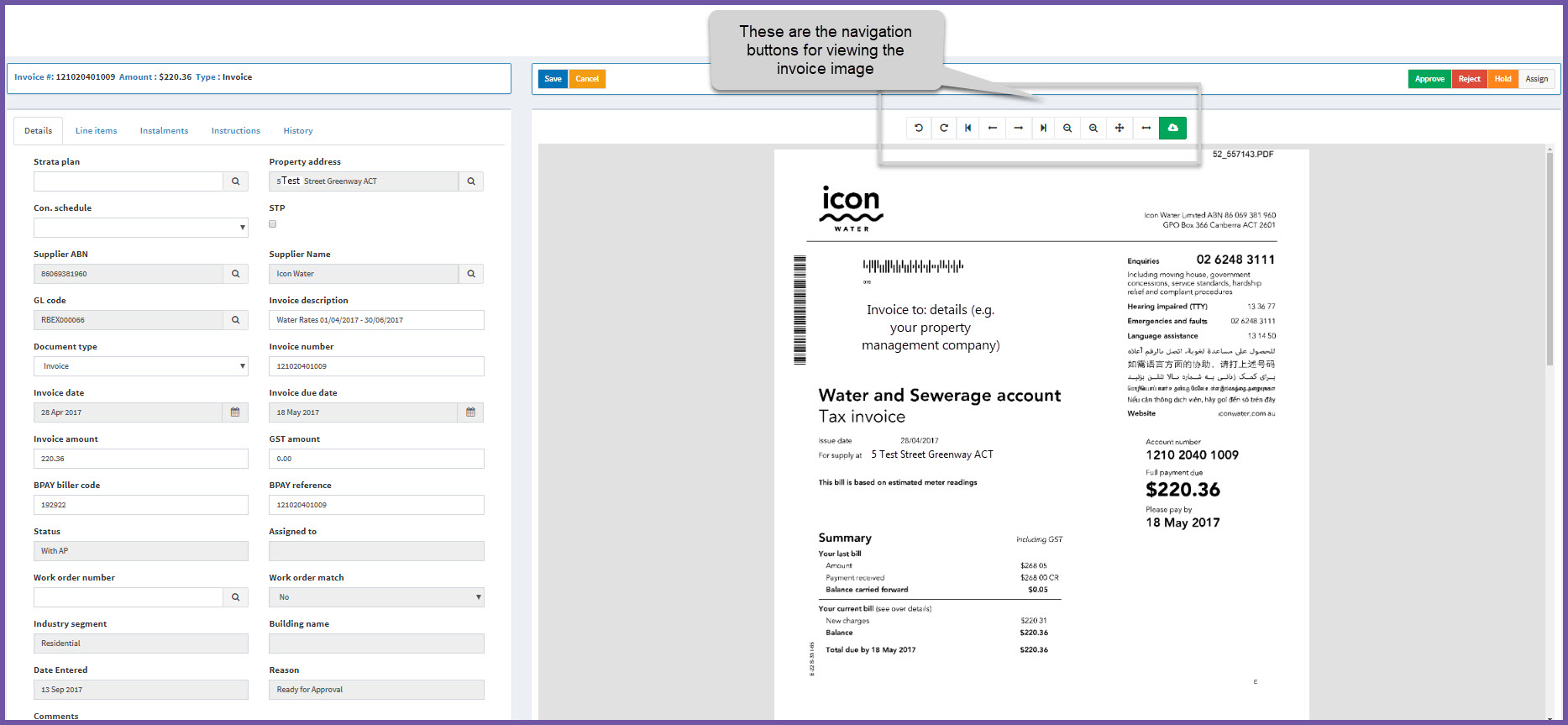
The original invoice that AIM used to extract the data shows as an image next to the invoice details screen.
Click on any invoice to sopen the invoiced details screen and view the image.
There are navigation buttons at the top of the image. If you hover your mouse over the buttons you will see an explanation of the navigation icons.
For example, in the screenshot below, if you hover above the green button you can see the invoice has been downloaded to your property management/strata management system.
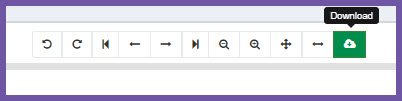
Using the navigation icons you can:
- rotate the invoice
- look at different pages (skip to end or first page if there are many pages)
- zoom in and out of the image
- zoom fit to page
- download the invoice as a PDF
Related articles:
Comments
0 comments
Article is closed for comments.