
Supplier Rules allow you to set STP (Straight Through Processing) rules for each supplier.
Supplier Rules apply when there's no applicable Work Order STP Rule or Property Rule associated with the property on the invoice.
The Supplier tab lists all existing Supplier Rules and an overview of each rule. The Setting column indicates the type of Supplier specific STP (Straight Through Processing) selected for the Rule. Hover over the Setting column to see a tooltip showing the STP Amount and STP percentage aplied to the rule. The Approvers column indicates the Approvers selected. Hover over over the Approvers columns to see a tooltip showing showing the approvers and their corresponding delegation amounts set for the rule.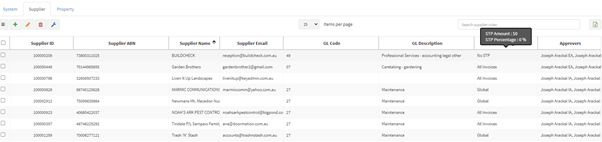
Adding a supplier rule
Step 1 - Click New Supplier Rule
Step 2 - search for the Supplier using quick search

Step 3 - Select the Supplier
Step 4 - Add Supplier
Step 5 - Click Next to take you to the configuration page
Step 6 - Select the rule type from the dropdown list
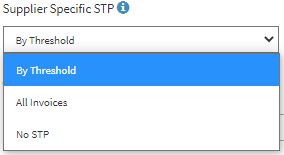
Step 7- If By Threshold is selected:
Set the Threshold $ and/or %. If both $ and % are selected, then both conditions must be met to satisfy the Rule.
Step 8 - Select the required approvers and the delegation amount if required
Step 9 - Save
Editing an existing supplier rule
Step 1 -Search and select the rule
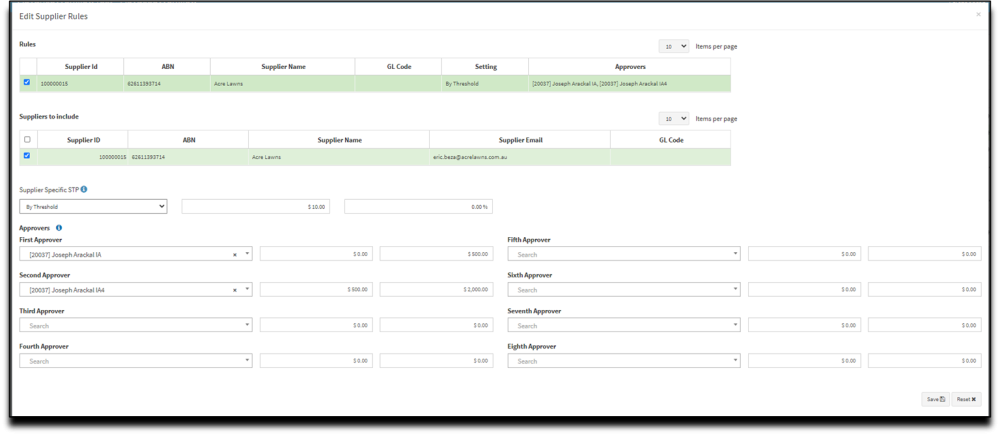
Step 2 -Edit Supplier Rule(s)

Step 3 - Make necessary adjustments
Step 4 - Save
Deleting an existing Supplier rule
Step 1 - Select the rule
Step 2 - Delete Supplier Rule(s)

This video shows how supplier rules work:
Comments
0 comments
Article is closed for comments.