
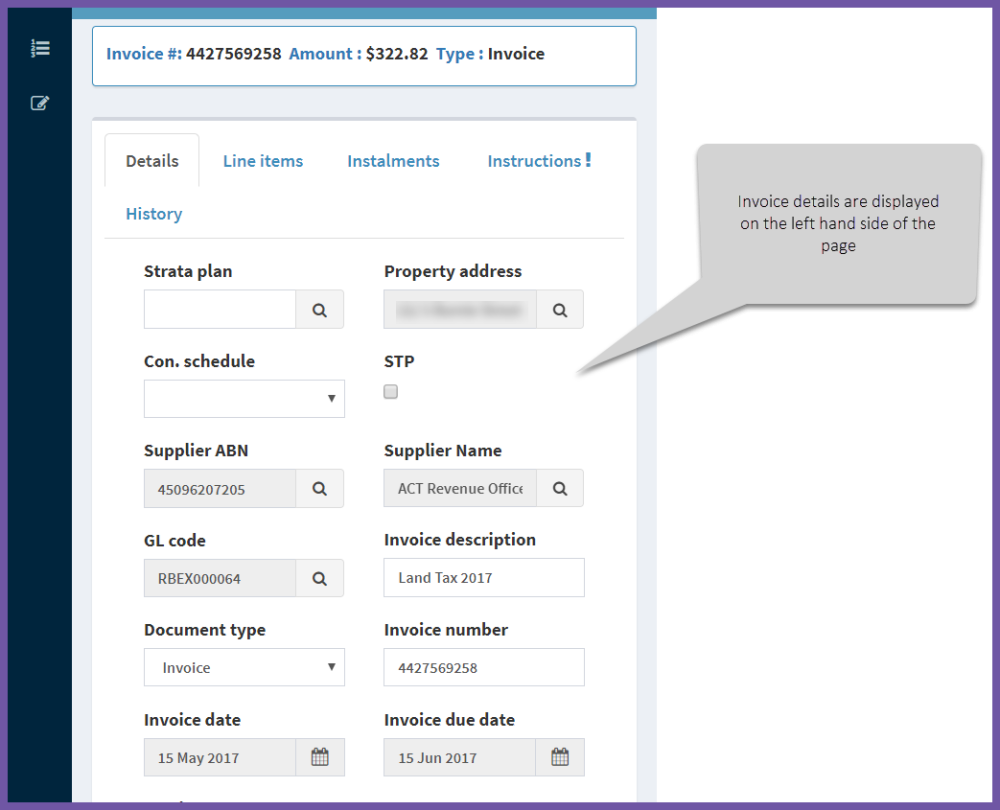
When you open an invoice you’ll be able to see all the invoice details. This shows the data that AIM has extracted.
The invoice fields
Here are the main fields on the invoice details tab:
- Strata plan – this field is populated when there is a strata plan/OC number associated with the property (this is synced from your property management/strata management system)
- Property Address – the street address of the property (this is synced from your property management /strata management system)
- Contribution schedule – this field is populated when the property has a contribution schedule (e.g. OC1) entered in your strata management system
- STP – this is a checkbox that is ticked if a Straight Through Processing rule has been applied
- Supplier ABN - The ABN for the supplier recorded on your property management/strata management system
- Supplier Name - The supplier name recorded on your property management/strata management system.
- GL Code – this is the general ledger (chart of accounts) code recorded for this type of expenditure in your property management/strata management system.
- Invoice Description – AIM provides a description of the invoice type (e.g. Electricity, water rates etc.)
- Document Type – AIM classifies documents into five categories – most are invoices, but they can be an adjustment note, an overdue or reminder notice, a non-invoice (e.g. a statement) or a credit note
- Invoice Number – the invoice number assigned by the supplier
- Invoice Date – the date shown on the invoice
- Invoice Due Date – AIM will provide a due date if it is found on the invoice, but if not, the due date will be the same as the invoice date
- Invoice GST – this is the total GST found on the invoice
- BPAY Biller Code - shows if the supplier has provided a BPAY option
- BPAY Ref No – the customer reference number for suppliers that provide a BPAY option
- Work Order Match – this indicates (yes or no) whether the invoice has been matched to a work order provided by your property management/strata management system
- Work Order Number - if the invoice references a work order number and it can be matched to one on yourproperthere is a matched work order, the number will be shown here
- Assigned To – if an invoice has been assigned to a user from your company (e.g. the Property Manager or Strata Manager) their name shows here
- Date Received – the date the invoice was received into AIM
- Status – there are several status options – i.e With AP, (Accounts Payable), On Hold, Exception and Ready for download to your property management system
- Industry Segment – indicates whether residential property management, commercial,property management or strata
- Reason – this field shows why the invoice has a certain status – for example an invoice with an exception status, may have a reason of “Property could not be found in database”. An invoice with exception status may have multiple errors in the reason field.
- Comments – this is where you can read existing comments about the invoice
- Add your comment – you can choose the add comment field to provide notes about the invoice.
Related articles:
Comments
0 comments
Article is closed for comments.