
If you're using Advanced Workflow you can use Property Rules to set specific invoice workflow on a per property basis. Property Rules override any supplier rules you’ve created.
The Property tab shows all existing Property Rules.
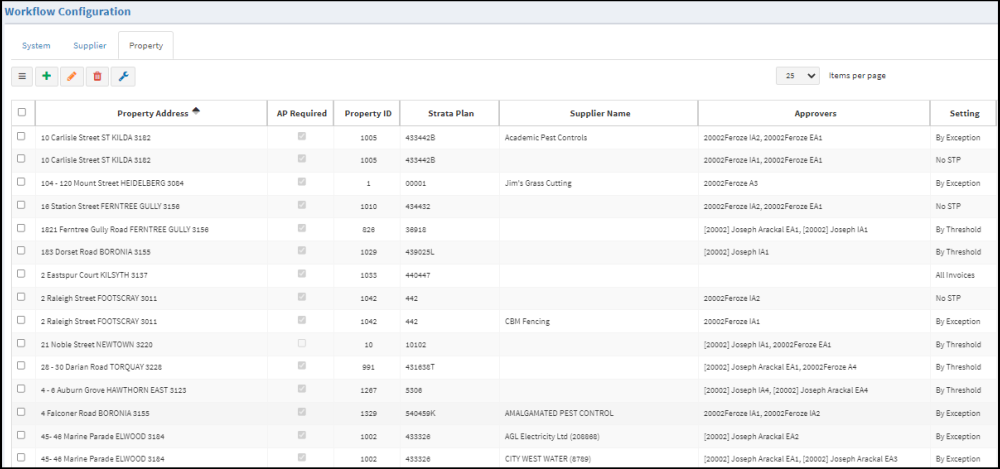
The Approvers column shows which Approvers are currently selected for the property. Hover over over the Approvers columns to see a tooltip showing the approvers and thecorresponding delegation amounts set for the Rule.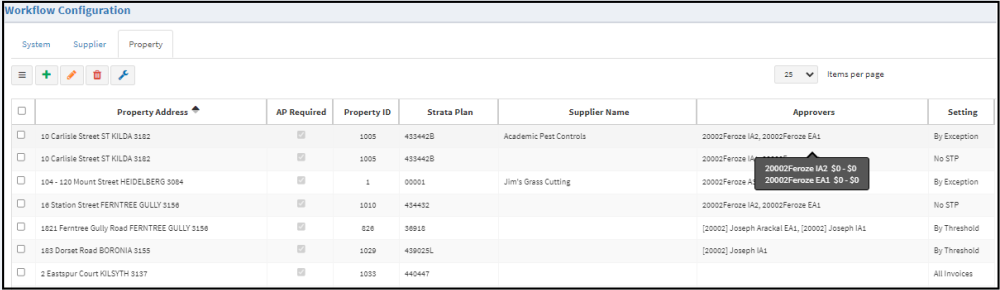
The Setting column shows the type of property specific STP (straight through processing) conditions for each rule. Hover over the Setting column to see a tooltip displaying the baseline amount, STP amount and STP percentage for the rule.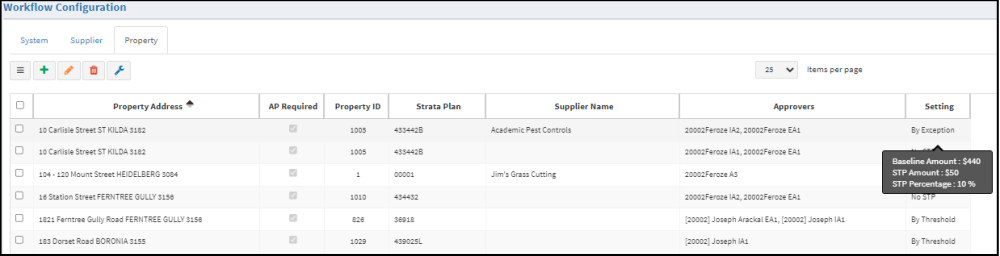
This video explains how Property Rules work:
STP (Straight through processing) by Baseline Amount.
The STP process looks at the last approved invoice for the supplier/property combination to determine whether the incoming invoice is within tolerance.
However, this doesn’t allow for a common scenario that occurs when usual invoice amounts are exceeded regularly by a small amount.
For example, you have an agreement with a gardener for a servicer that will usually be charged at $75 per month.
However, there are times when the gardener does some extra work and charges $100 per month.
Without a baseline, these $100 invoices would be sent for approval workflow.
There are 4 types of Property Specific STP rules you can apply to a Property Rule.
1. By Threshold
This option allows you to set a Baseline and a $ and/or % threshold for your Rule. When an invoice matches the Property in the rule, the invoice amount will be compared to the Baseline
- if the variance is within the thresholds, the invoice is released Ready for download to your property management/strata management system
- if the variance is outside the thresholds, the invoice follows the approval flow set in the Rule.
2. By Exception
This option allows you to set a Baseline and a $ and/or % threshold for a combination of a Property and a specific Supplier. When an invoice matches the Property and Supplier in the Rule, the invoice amount will be compared to the Baseline.
- if the variance is within the thresholds, the invoice is released Ready for download to your property management/strata management system
- if the variance is outside the thresholds, the invoice follows the workflow set in the Rule.
3. All Invoices
This option allows every invoice matching the Property in the rule to be released "Ready for download" to your property management/strata management system without additional authorisation.
4. No STP
This option forces every invoice matching the Property in the rule to go through the approval flow set in the Rule.
To add a new Property Rule
Click New Property Rule 
Search for the property with quick search, select the property and click Add Property 
Click Next to take you to the configuration page
Select the Rule type fromn the Property Specific STP dropdown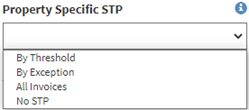
If By Threshold or By Exception is selected,set the Baseline and Threshold $ and/or %. If both $ and % are selected, then both conditions must be met to satisfy the rule.
6. If By Exception is selected
Select a Supplier for the Rule
Select the required approvers and the delegation amount, if required
Save.
Select the rule and click Edit Property Rule(s) 
Enter your changes
Save
Deleting an existing Property rule
Select the rule.
Select Delete Property Rule(s) 
Related articles
Advanced workflow - Property Rules
Advanced workflow - Supplier Rules
Advanced workflow - Replace ApproversAdvanced workflow - Skip AP Users
Advanced workflow - how to edit a supplier rule
Advanced workflow - how to add a new Supplier Rule
Advanced workflow - how to set approvers for supplier and property rules
Comments
0 comments
Article is closed for comments.