
The line items function is accessed from the Line Items tab on the main invoice details screen:
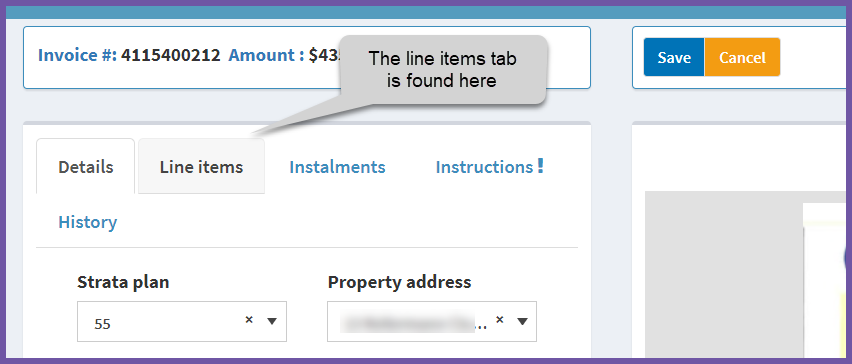
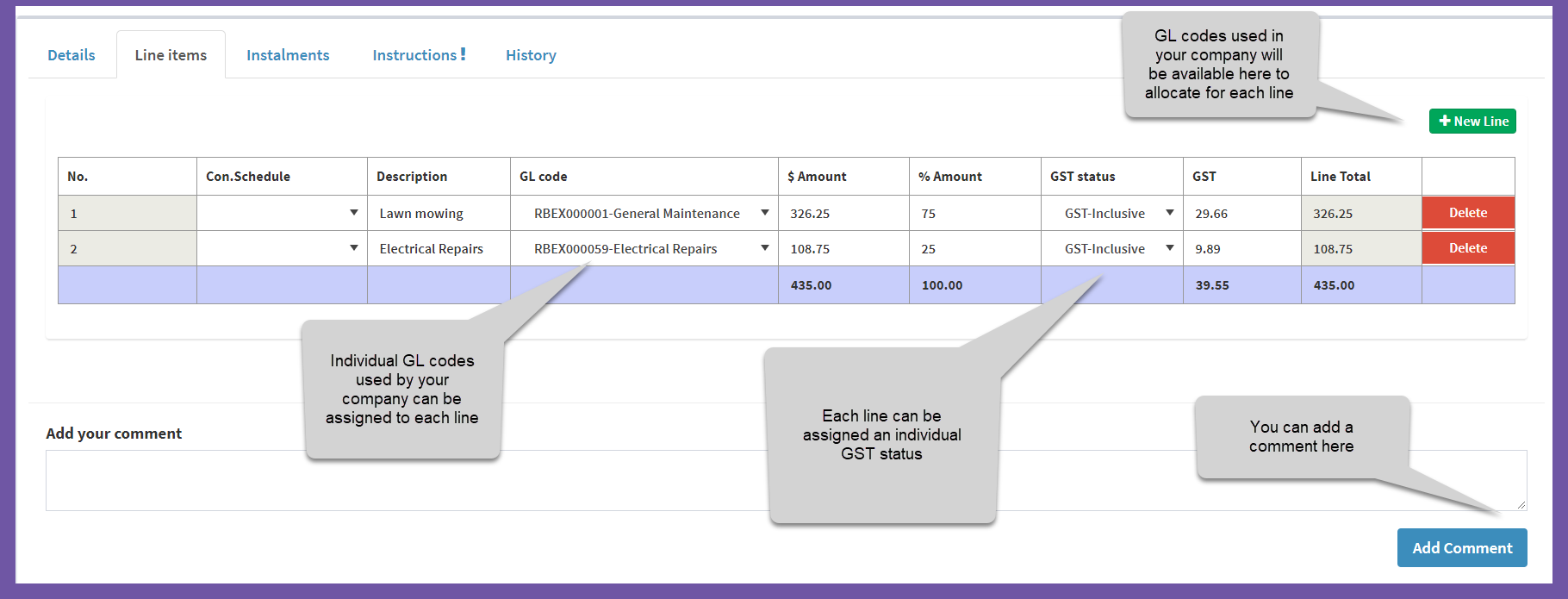
The line items tab shows the details if there are multiple lines on the invoice.
Adding another line to an invoice
If you need to split an invoice into different lines (for example, if you want to have the invoice split between different GL codes) AIM allows you to add extra lines, even if the original invoice doesn’t present the lines.
Step 1: Locate the invoice you want to work with.
Step 2: Click to open the invoice.
Step 3: Select the Line items tab.
Step 4: New Line

Editing the new line
When you have added a new line you can enter any details you need. AIM applies the following rules:
- Contribution schedule – if there are contribution schedules entered for this property on your strata mangement software, the first, or main contribution shows here by default but you can select a different schedule for each line item.
- Description – can be edited
- GL Code – Start typing some letters of the GL (chart of accounts) code you want to allocate this line item to and select the one you want. You can search by either letters or numbers.
- $ Amount – is populated with the original invoice total, but can be overwritten
- % Amount – is populated from the original invoice (100%) but can be altered. For example, if you want to apply a 50% split to the lines, enter 50% in this field and AIM will calculate the amount for you.
- GST Status – can be set for each line. Please check that you are using the correct GST status. as AIM will apply calculations based on your selection. For example, if you choose GSTExclusive for a line, AIM will calculate the GST on the $ Amount.
AIM uses accounting definitions for GST status:
- GST-Inclusive – means that GST is included in the amount
- GST-Exclusive – the total figure before GST has been added
- GST-Free – this item is not eligible for GST
- GST – this is the calculated amount of GST for this line item – you can overwrite the GST if you wish
- Line Total – this is the total of the line (Note: if GST-Exclusive is selected the GST calculated amount will be added to the total for that line)
Comments
0 comments
Article is closed for comments.